
i8fun Game Transactions Guide – Deposits and Withdrawals
The i8fun Game transactions page helps users manage deposits, withdrawals, and payment history from one place. Pakistani users may find payment methods such as JazzCash and Easypaisa, depending on the current app version. Before completing any transaction, check the account number, amount, service fee, and payment status carefully. Keep every payment receipt until the transaction appears successfully in your game wallet.
How to Deposit Money in i8fun Game
- Open i8 Game and log in to your account.
- Go to the Wallet or Deposit section.
- Select an available payment method, such as JazzCash or Easypaisa.
- Enter the amount you want to deposit.
- Check the minimum deposit limit and payment instructions.
- Open your selected mobile-wallet application.
- Send the exact amount to the account shown inside the Game.
- Copy the transaction ID or reference number.
- Return to the deposit page and enter the required payment details.
- Tap Submit and check your wallet balance after confirmation.
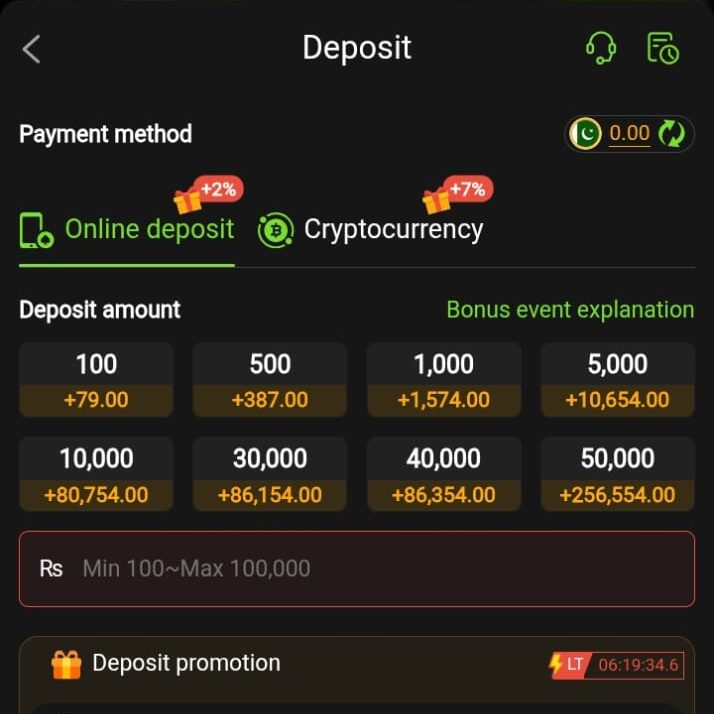
Do not send the same payment again while your first deposit is still pending.
How to Withdraw Money from the i8fun Game app
- Log in and open the Wallet section.
- Tap Withdraw or Cash Out.
- Choose JazzCash, Easypaisa, or another available option.
- Enter your account title and mobile wallet number.
- Type the amount you want to withdraw.
- Review the minimum withdrawal limit, fee, and bonus conditions.
- Check every digit of your receiving number.
- Tap Confirm or Submit Withdrawal.
- Open the transaction history to track the request.
- Wait for the payment to arrive before sending another request.
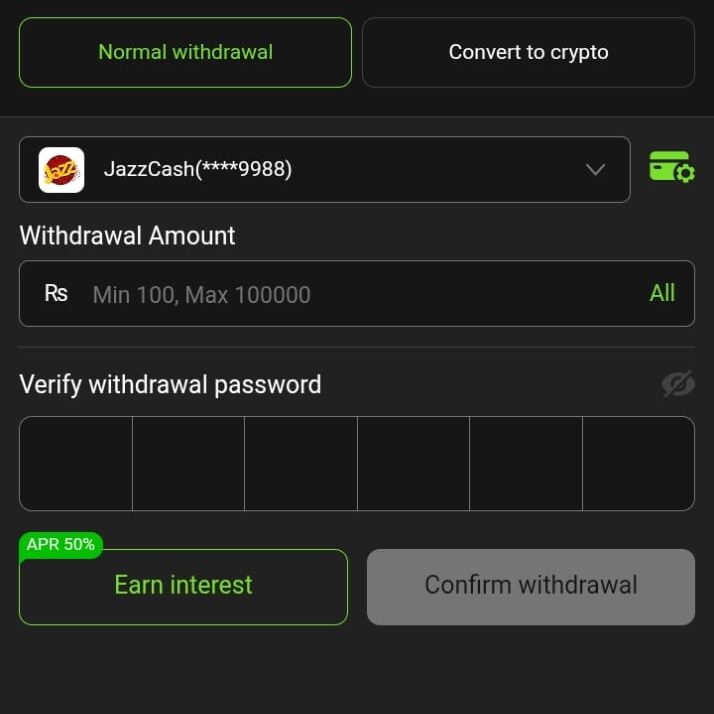
Use a payment account that belongs to you. Incorrect wallet details may delay or cancel the withdrawal.
How to Check Transaction History
- Open i8 Game and go to Wallet.
- Select Transaction History, Records, or My Transactions.
- Choose deposits, withdrawals, bonuses, or game records.
- Use the date filter when you need to find an older transaction.
- Tap a record to view its amount, time, payment method, and status.
Transaction Status Explained
| Status | Meaning |
|---|---|
| Pending | The request has been submitted and is waiting for review |
| Processing | The payment is currently being handled |
| Successful | The transaction has been completed |
| Rejected | The request was not approved |
| Failed | The payment could not be completed |
| Returned | The amount may have returned to your game wallet |
Important Transaction Safety Tips
- Use only the payment details shown inside the app.
- Never share your password, OTP, or wallet PIN.
- Save screenshots and transaction receipts.
- Check the recipient number before sending money.
- Start with a small deposit when using a new payment method.
- Do not pay an unofficial withdrawal or release fee.
- Contact support through the official help section only.
Final Words
Managing transactions in i8 Game is simple when you follow each step carefully. Always check your payment details before making a deposit or submitting a withdrawal. Keep your receipts until the payment status changes to successful. Avoid sharing private account information with anyone. Careful payment management can help you prevent errors and protect your funds.